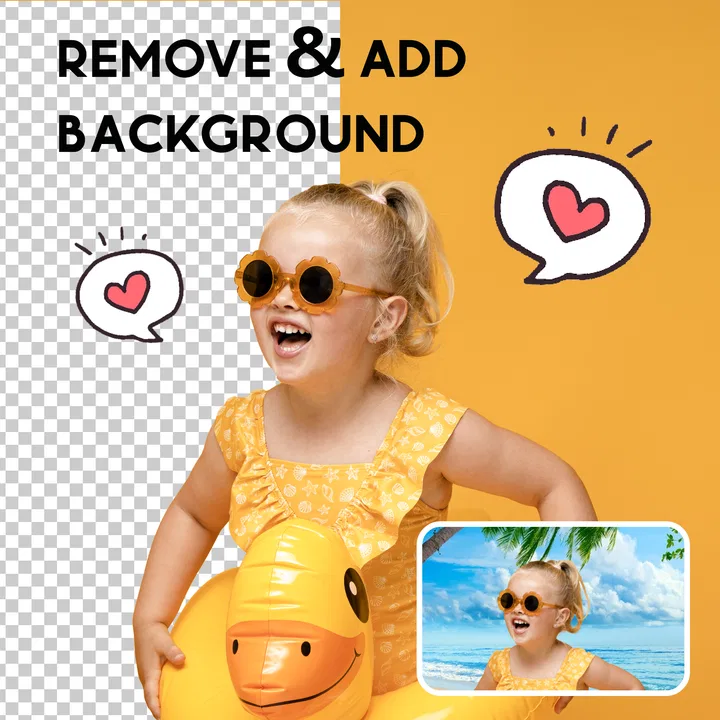
AI Remove: Background Eraser
- 4.1
- Rating
- 1.00M
- Installs
- Free
- Price

 Analysis by App-foxy
I used AI Remove: Background Eraser as a practical photography tool rather than treating it like a full photo editor, and that distinction matters. Its main job is to separate a subject from its surroundings, so you can place a person, product, pet, or object on a cleaner background without manually tracing every edge. That focused purpose makes it easy to understand, but it also means the quality of your result depends heavily on the original image and on how complicated the subject is.
The app comes from Avn Global Application and is available free of charge for everyone. It sits in the photography category, has passed one million installs, and holds a 4.1 average from roughly 5.8 thousand ratings. Those figures suggest that it has reached a substantial everyday audience, while the rating also gives a realistic impression: useful for many quick edits, but not a universal replacement for a professional desktop editor.
How AI Remove feels during ordinary edits
The appeal is immediate. Instead of opening a complicated editing suite, searching for a selection tool, and learning how to refine a mask, I can start with the image I want to clean up and let the automatic process handle the first pass. For a profile picture, a simple product shot, or a subject standing against a fairly distinct background, this is the kind of workflow that saves more time than it seems.
You May Also Like

 Google Keep - Notes and lists
Google Keep’s Quiet Growth Shows the Appeal of Simpler Notes
As mobile work gets busier, Google Keep keeps winning a simple contest: capture a thought quickly, find it later, and get on with the day.

 Blood Strike: 2.5 Anniversary
Blood Strike’s Loadouts Turn Every Drop Into a Tactical Gamble
A close look at Blood Strike’s custom loadouts: how fast access to signature weapons reshapes its battle royale rhythm, rewards preparation, and narrows the gap between fights.

 Pandora - Music & Podcasts
Pandora’s Music Is Easy to Start, but Harder to Recover
Pandora’s strength is its low-effort path from a seed to a station. Its weak spot is how much confidence it asks you to place in connection, setup, and quiet recovery.

 8 Ball Pool
 Is Built on Rivalries, Rematches, and Routine
A close look at the rivalries, rematches, shared routines, and unanswered safety questions that turn a quick pool match into a persistent mobile community.

 Samsung Music
’s Quiet Strength Is Playing What You Already Own
Its reach comes less from spectacle than from dependable access to a personal library. That simplicity is both the app’s strongest retention engine and its ceiling.

 AccuWeather: Weather Radar
AccuWeather Review: A Quick, Clear Forecast for Everyday Decisions
For everyday plans, the best forecast is the one you can understand quickly. AccuWeather makes rain timing, radar, and local conditions easy to act on, with a few trade-offs.
More From Our News Desk



My expectation would be a short wait for straightforward images, not instant results in every situation. Automatic background removal has more work to do when hair, transparent objects, shadows, foliage, or similarly colored surroundings are involved. A simple subject against a contrasting wall is an easier task than a bicycle surrounded by branches, and the app should be judged with that difference in mind.
The most useful speed advantage is the reduced amount of manual preparation. Even when the result needs checking, getting an initial cutout automatically is usually faster than beginning with a blank canvas and drawing around the subject yourself. That makes the app particularly suitable for quick social posts, marketplace images, classroom projects, and personal collages where a perfect studio mask is not the main goal.
There is also a practical difference between processing one image and working through many. For a single picture, the wait is easier to accept because the task is clear and limited. If I were preparing a large catalog of products, I would be more cautious. A mobile background remover can be convenient for selecting a few images, but a desktop workflow or a dedicated batch-oriented service may be more efficient when every item needs consistent framing and careful edge control.
What affects the apparent processing speed
The source image matters as much as the app. A well-lit subject with a visible outline gives the automatic system a clearer separation problem. Low contrast, motion blur, crowded scenes, and fine details can make the result take more attention afterward, even if the initial processing itself feels quick. In other words, a fast first pass is not the same as a finished image.
I would also avoid judging performance from a single difficult photo. A demanding image can produce a less convincing cutout without meaning that the app is generally slow or unstable. Try a clear portrait and a busy outdoor image separately. That comparison tells you more about whether the tool fits your usual photography than a simple stopwatch test.
For an everyday workflow, I would prepare the original first: crop away irrelevant empty space, choose the highest-quality copy available, and avoid repeatedly exporting and re-importing the same picture. This does not change the app’s underlying processing, but it reduces unnecessary steps and makes it easier to see whether the automatic selection is actually improving the image.
Where heavy use becomes less comfortable
The app is easiest to recommend for occasional edits. A user who removes a background from a few photos for a birthday invitation or a new avatar is unlikely to find the workflow burdensome. The situation changes when the phone is already busy with large photos, several open apps, or limited free storage. Image editing generally needs room for the original and the working result, so keeping the device reasonably tidy is sensible.
I would not describe it as a tool for careless, unlimited processing on every phone. The minimum operating-system requirement is Android 7.0, which keeps it accessible to many older devices, but age alone does not tell the whole performance story. Two phones running the same system version can behave differently because of memory, processor capability, storage condition, and the size of the pictures being edited.
Long editing sessions are also where resource demands become more noticeable. If I were working through a sequence of high-resolution images, I would process them in smaller groups, save useful results, and close other demanding apps if the phone began to feel sluggish. That is not a special feature of this particular editor; it is a sensible way to avoid turning a simple cutout task into a frustrating session.
A useful habit is to keep the untouched original until the final image has been checked. Automatic removal can look excellent around the main outline while losing a small detail such as a strap, finger, whisker, or narrow gap. Exporting over the only copy makes recovery harder. Keeping the original gives me a safe way to retry with a different image crop or choose another editing method.
Reliability depends on the image, not only the app
In my experience with this kind of tool, reliability should mean more than whether the screen opens. It includes whether the selection is predictable, whether the result can be reviewed before use, and whether I can recover sensibly when the first attempt is not good enough. AI Remove: Background Eraser is most dependable when the subject is visually distinct and the requested edit is simple.
Edges are the real test. Large, solid shapes are forgiving. Hair, fur, lace, glass, smoke, and shadows are not. A cutout may still be useful for a casual post, but the same result could look unconvincing on a professional listing or printed design. I would inspect the outline at a larger scale before placing it on a bright or contrasting background, because small halos and missing details become much easier to notice there.
One non-obvious workflow is to choose the replacement background only after checking the cutout on more than one color. A pale fringe can disappear on a light background but become obvious on dark blue. Testing the subject against a plain light and plain dark surface is a quick way to expose edge problems before you share the image. This is especially valuable for profile pictures and product images, where the outline is often more visible than expected.
Another useful approach is to treat the automatic result as a starting point rather than assuming it is final. If the subject is complicated, I would simplify the composition afterward: use a background with similar lighting, avoid placing the cutout beside another sharply defined object, and keep the subject large enough that minor edge imperfections do not dominate the frame. This is a creative workaround for the limits of automatic selection.
Recovery is also easier when I save versions with clear names rather than repeatedly replacing one file. For example, an original image, an automatic cutout, and a final composition should remain separate. That small bit of organization prevents a failed experiment from becoming permanent and makes it easier to return to the cleanest version.
Everyday situations where it earns a place
Imagine taking a quick portrait at home for a messaging profile. The room behind you is untidy, the lighting is acceptable, and you do not want to learn a complex editor. This app can be a sensible first step: remove the room, place the subject over a plain color or a calmer image, and check the outline before using it. The result may not have the precision of a carefully retouched studio portrait, but it can look much more intentional than the original snapshot.
It is also useful for small online selling tasks. A person photographing a lamp, handmade item, or accessory can create a cleaner presentation by separating the object from a distracting table or room. Here I would be careful with transparent materials, reflective surfaces, and thin parts. If the outline is important to the buyer’s understanding of the item, a plain original photo may be more trustworthy than an aggressive automatic cutout.
For social content, the app is strongest when speed and simplicity matter more than elaborate design. A cutout can be reused in a thumbnail, a collage, or a simple announcement. The focused workflow is less intimidating than a full editor, especially for someone who only needs one automatic action and does not want to manage layers, brushes, curves, and dozens of adjustment panels.
Parents, students, and casual creators may also appreciate the Everyone content rating. It makes the app approachable for general household use, although younger users should still be guided when editing or sharing personal photos. The age rating describes the app’s general suitability; it does not remove the need for good judgment about which images are made public.
When another tool is the better choice
I would skip this app if my main requirement were exact professional masking. A designer working with hair, transparent packaging, architectural details, or repeated commercial assets may need manual path tools, brush-based refinement, layer controls, and color correction. Those capabilities are usually easier to manage in a full desktop editor or a specialized professional application.
I would also look elsewhere if background removal is only one small part of a larger project. Someone who needs typography, perspective correction, detailed retouching, compositing, and export control may become frustrated by a narrowly focused mobile tool. AI Remove: Background Eraser makes more sense when automatic separation is the central job, not when it is expected to serve as an entire creative workstation.
There is a trade-off around convenience and cost as well. The app is free to install and use as a basic choice, while in-app purchases range from $1.49 to $23.99 per item. Before relying on it for regular work, I would check which parts of the workflow require payment and whether that fits the frequency of my edits. Occasional users may find the free entry point attractive; frequent users should consider the total cost against alternatives they already use.
The current version is 1.0.120_20260505. That version detail is useful when troubleshooting because an issue may be connected to the particular build installed on the phone. If an edit behaves unexpectedly, I would first preserve the original, retry with a simpler image, and make sure the app is current before blaming the photograph or abandoning the workflow entirely.
Device limits and sensible preparation
Android 7.0 is the stated minimum, so the app is not restricted to recent phones. Still, compatibility is only the starting point. Older hardware may take longer with large images, and a device with little free storage may be less comfortable during repeated editing. I would use the app on a phone that has enough working space for image files and avoid judging it while the device is performing several other demanding tasks.
Photo size is another practical consideration. A large original preserves detail, but it can make every step heavier. For a small profile image, there is little benefit in carrying an enormous file through the entire process. For a product image that may be cropped later, keeping more resolution is sensible. The right balance depends on the final destination, and resizing an unnecessary giant image before editing can make the workflow more manageable.
Battery behavior is difficult to separate from the rest of the phone’s workload, so I would not assume that every session will feel identical. A short edit on a cool, idle device should feel different from a long sequence of large images while other apps are active. If the phone becomes warm or starts slowing down, taking a break and saving completed work is more sensible than repeatedly tapping the process button.
For dependable recovery, I recommend three simple habits: keep the original, save successful results as separate files, and test a difficult image before committing to a large project. These steps do not add much time, yet they protect against the most common disappointment with automatic background tools: discovering too late that a small but important part of the subject has vanished.
My performance verdict after weighing convenience against control
AI Remove: Background Eraser is a focused photography app with a clear reason to exist. It can shorten the path from an ordinary photo to a usable cutout, especially when the subject stands apart from its surroundings. I like it most for quick portraits, simple product photos, collages, and casual social graphics where an automatic first pass is more valuable than painstaking control.
Its perceived speed should be good for uncomplicated images, while difficult edges and heavy batches demand more patience and inspection. I would not promise the same experience on every Android phone, because the minimum system version does not guarantee identical hardware performance. The sensible expectation is a convenient mobile assistant, not an industrial production line.
The rating of 4.1 from around 5.8 thousand ratings feels consistent with that position: capable enough to earn regular use, but not so universally polished that every image will be perfect. With more than one million installs, it has clearly found an audience among people who want a direct background-removal workflow rather than a large editing suite.
My recommendation is straightforward. Try it if you want a free, approachable way to isolate subjects and you are comfortable checking the edges yourself. Keep another editor available for demanding masks, transparent objects, fine hair, or professional deliverables. Its best value is not perfect automation; it is saving you from doing the first, most tedious part of a simple edit by hand.
For me, that makes it worth keeping on an Android device when quick cutouts are an occasional need. I would use it selectively, preserve the original image, and judge each result at the size and background where it will actually appear. Used with those expectations, this photography app is practical, accessible, and considerably more useful than its narrow name might suggest.
FAQs for AI Remove: Background Eraser
01What is AI Remove: Background Eraser, and how does it work?
AI Remove: Background Eraser is an application designed to simplify the process of removing backgrounds from images. Using advanced AI algorithms, it accurately identifies and separates the subject from the background, allowing users to create clean, professional-looking images. This can be particularly useful for creating product photos, social media content, or personal projects.
02Is AI Remove: Background Eraser user-friendly for beginners?
Yes, AI Remove: Background Eraser is designed with user-friendliness in mind. The interface is intuitive, allowing even those with minimal technical skills to easily navigate and use the app. It offers step-by-step guidance to help users efficiently remove backgrounds without requiring advanced editing knowledge.
03What platforms is AI Remove: Background Eraser available on?
AI Remove: Background Eraser is available for both Android and iOS devices. Users can download the app from the Google Play Store or the Apple App Store, ensuring compatibility with a wide range of smartphones and tablets. This cross-platform availability makes it accessible to a broader audience.
04Does AI Remove: Background Eraser support batch processing of images?
Yes, the app supports batch processing, allowing users to remove backgrounds from multiple images simultaneously. This feature is particularly beneficial for professionals who need to process large volumes of images quickly, such as e-commerce sellers or content creators, saving them significant time and effort.
05Are there any in-app purchases or subscriptions required?
AI Remove: Background Eraser offers both free and premium versions. While the free version provides basic functionalities, users can opt for in-app purchases or subscriptions to access advanced features, such as higher resolution exports, additional editing tools, and priority support. This flexibility allows users to choose a plan that fits their needs.
Pros
- User-friendly interface for quick edits.
- High-quality background removal accuracy.
- Supports multiple image formats.
- Fast processing with minimal lag.
- No watermarks on exported images.
Cons
- Limited free version features.
- Occasional small detail errors.
- Ads in the free version can be intrusive.
- Requires internet for best results.
- No batch processing option available.

AI Remove: Background Eraser
Gallery